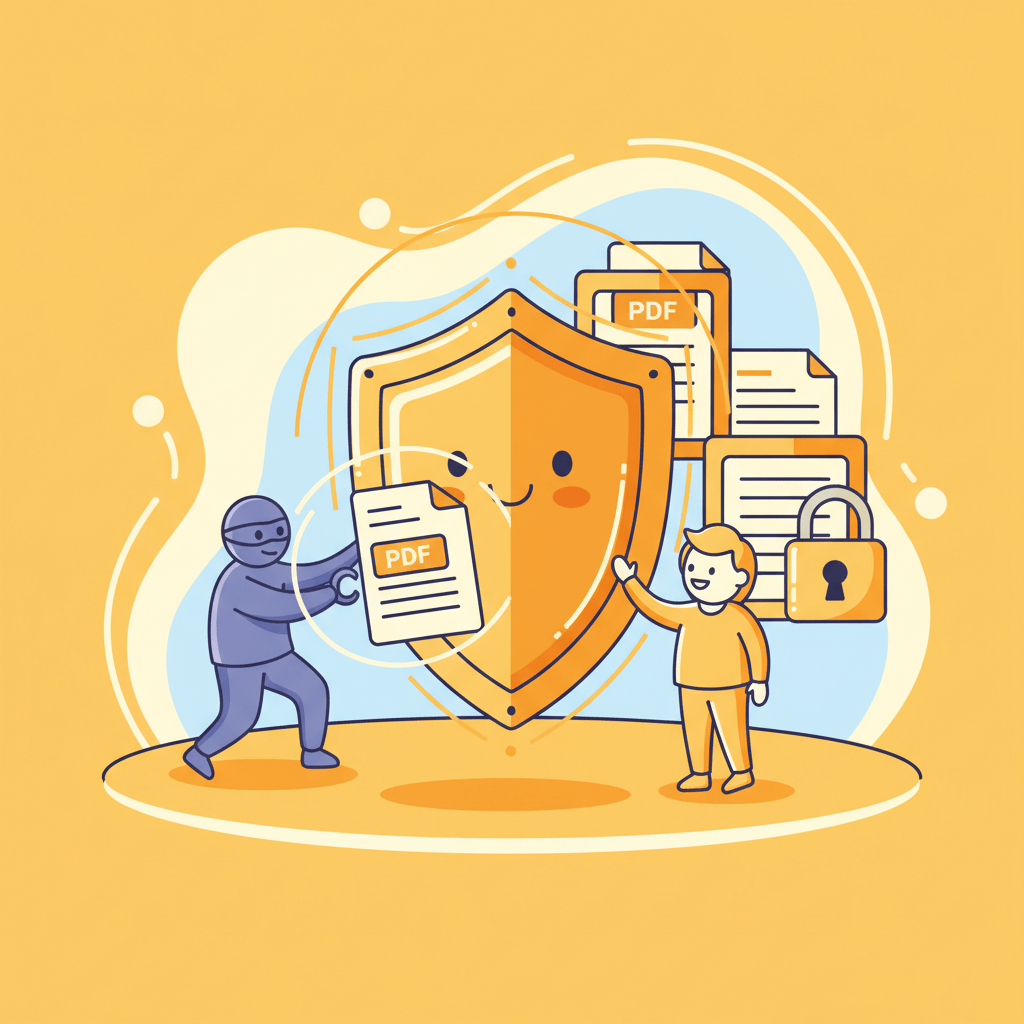
How to Password-Protect a PDF in 2025: A Step-by-Step Guide to Securing Documents Online

Why Password Protection for PDFs Is Essential in 2025
PDF remains the universal format for both business and personal documents. But every unprotected file is a potential data leak. In an era of cyber espionage and privacy breaches, securing PDFs is not a luxury — it’s a necessity.
Without a password, your PDF can be:
- Opened by anyone who gains access to it.
- Copied, edited, or redistributed.
- Embedded inside malicious files.
- Intercepted through email or cloud sharing.
Modern PDF attacks include phishing attachments, page substitution, and malicious scripts. One unencrypted report can expose an entire company’s strategy.
What Data Most Often Leaks from PDFs
- Financial reports and tender documents.
Leaks of unencrypted bids have cost companies millions of euros. - Medical results and test reports.
Exposed PDFs containing personal data violate GDPR and EU Data Protection Laws. - Diplomas and certificates.
Without protection, these can be easily forged — especially in online submissions in 2025. - Internal presentations and contracts.
A single leaked agreement can reveal partners, payment terms, and delivery schedules.
Protect PDF — add a password in seconds
Keep sensitive files safe from unauthorized access. Lock PDFs locally in your browser — fast, private, and 100% secure.
How PDF Password Protection Works
A password activates encryption (usually AES-256). The algorithm converts content into an unreadable stream that can only be decrypted with the correct key.
Types of protection:
- Open file protection. A password is required to view the document.
- Action restrictions. You can disable printing, editing, or copying.
- Combined protection. The file is encrypted and access rights are role-based.
AES-256 is considered highly secure: with a strong password, brute-force attacks are computationally infeasible, even with GPU clusters.
How to Password-Protect a PDF Online in Your Browser
1. HatchMyPDF — Secure PDFs Without Uploading Files
HatchMyPDF is a free tool that works fully locally in your browser.
Not a single byte leaves your device.
How to use:
- Open Protect PDF.
- Drag and drop your PDF into the box.
- Set a strong password (12+ characters).
- Click “Protect PDF.”
- Save the encrypted document.
Advantages:
- No registration or ads.
- Works offline.
- AES-256 encryption.
- Complete privacy.
How to Create a Strong PDF Password
- Use at least 12 characters.
- Mix letters, numbers, and symbols.
- Avoid names, birth dates, or dictionary words.
- Don’t reuse passwords across documents.
- Send passwords through a separate channel (e.g., Signal, not email).
Tip: use a long passphrase in your native language — easier to remember, harder to crack.
How to Verify That Your PDF Is Encrypted
- Open the file in any PDF reader.
- If prompted for a password — encryption is active.
- In Adobe Acrobat, go to File → Properties → Security.
You’ll see the encryption method, restrictions, and protection level.
Common Mistakes When Protecting PDFs
- Using weak passwords (like “1234”).
- Sending the file and password in the same email.
- Uploading confidential PDFs to third-party clouds without encryption.
- Ignoring PDF reader updates that fix security vulnerabilities.
How Businesses Use PDF Protection in 2025
- Fintech and banking: automatic passwording for account statements.
- Universities: secure student certificates and diplomas.
- Medical institutions: encrypt reports before sending to patients.
- Freelancers and agencies: protect contracts and price lists.
Protect PDF — add a password in seconds
Keep sensitive files safe from unauthorized access. Lock PDFs locally in your browser — fast, private, and 100% secure.
Best Practices for 2025
- Always password-protect PDFs before sharing.
- Use local solutions (no cloud uploads).
- Encrypt with AES-256 standard.
- Store passwords separately from files.
- Verify encryption before publishing or sending.
Conclusion
Adding a password to your PDF is a simple but powerful step to protect against leaks, tampering, and unauthorized access.
The HatchMyPDF service lets you do it for free — no registration, no uploads.
Secure your PDFs today — everything happens right in your browser.
Reliable data protection starts with a single click.
Protect PDF — add a password in seconds
Keep sensitive files safe from unauthorized access. Lock PDFs locally in your browser — fast, private, and 100% secure.